Introductory offer: 50% off for a limited time

Ends in

0 d
0 h
0 m
0 s

For QA and UAT teams

What was tested,
and who approved it.

Testers comment on the real site, and every bug arrives with the console errors, the element and the browser. When a round is done, they press Approve. Export everything to a spreadsheet, and send complete tickets to Jira, Linear or GitHub.

14-day free trial · 30-day money-back guarantee

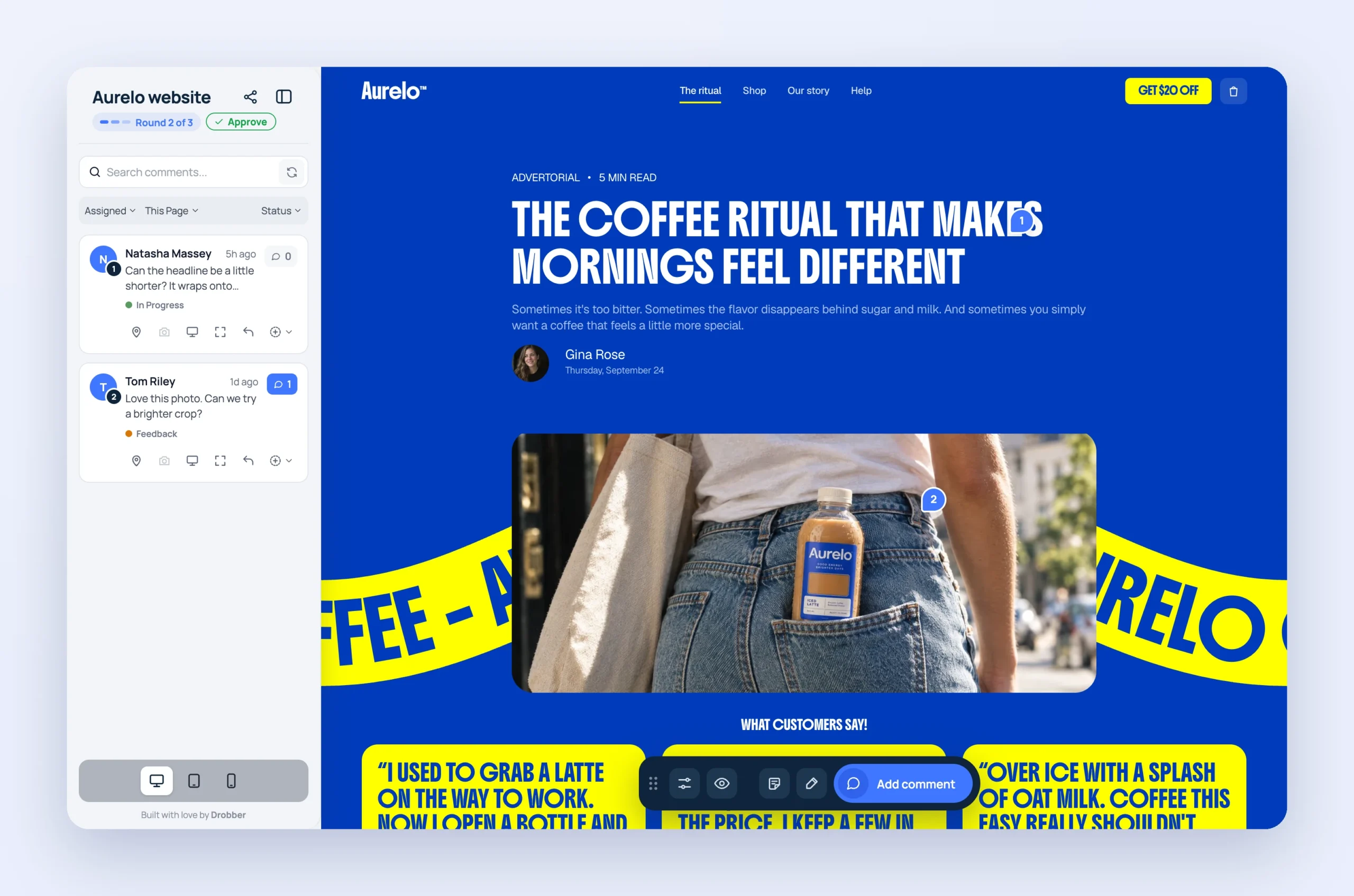
A client reviewing a website in Drobber, with Round 2 of 3 and an Approve button at the top of the comment panel

User acceptance testing

“Did anyone actually
sign this off?”

Acceptance testing usually ends with a spreadsheet of screenshots, an email thread and a meeting where someone asks who said what was fine. When a bug comes back after launch, nobody can find the record.

With testing tools switched on, testers leave feedback on the page itself and approve each round when they’re happy. You can see who approved what, and when, and export the lot whenever you need it.

Try it out
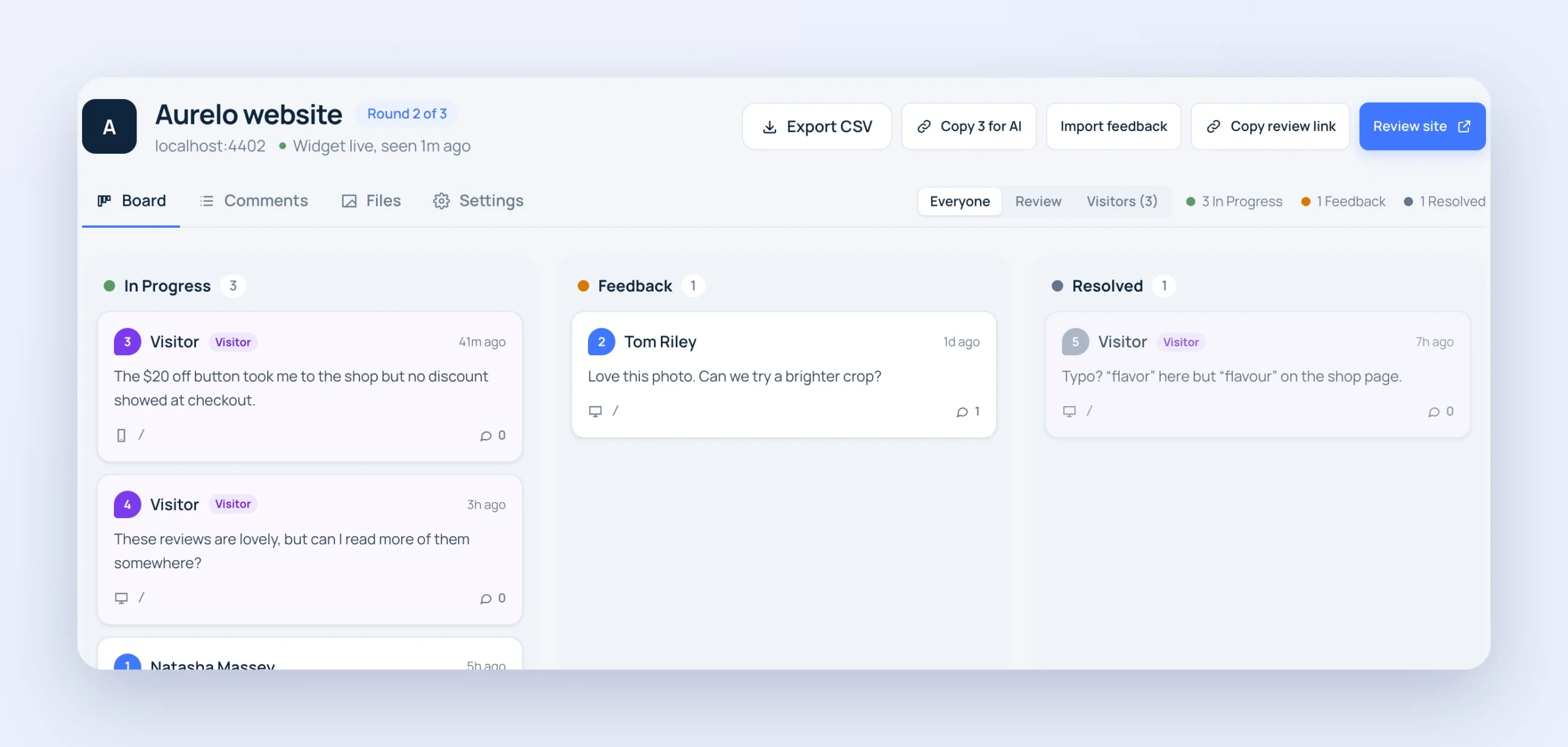
A Drobber project board with the Export CSV button and comments in In Progress, Feedback and Resolved

Approval

Approve each round.
On the record.

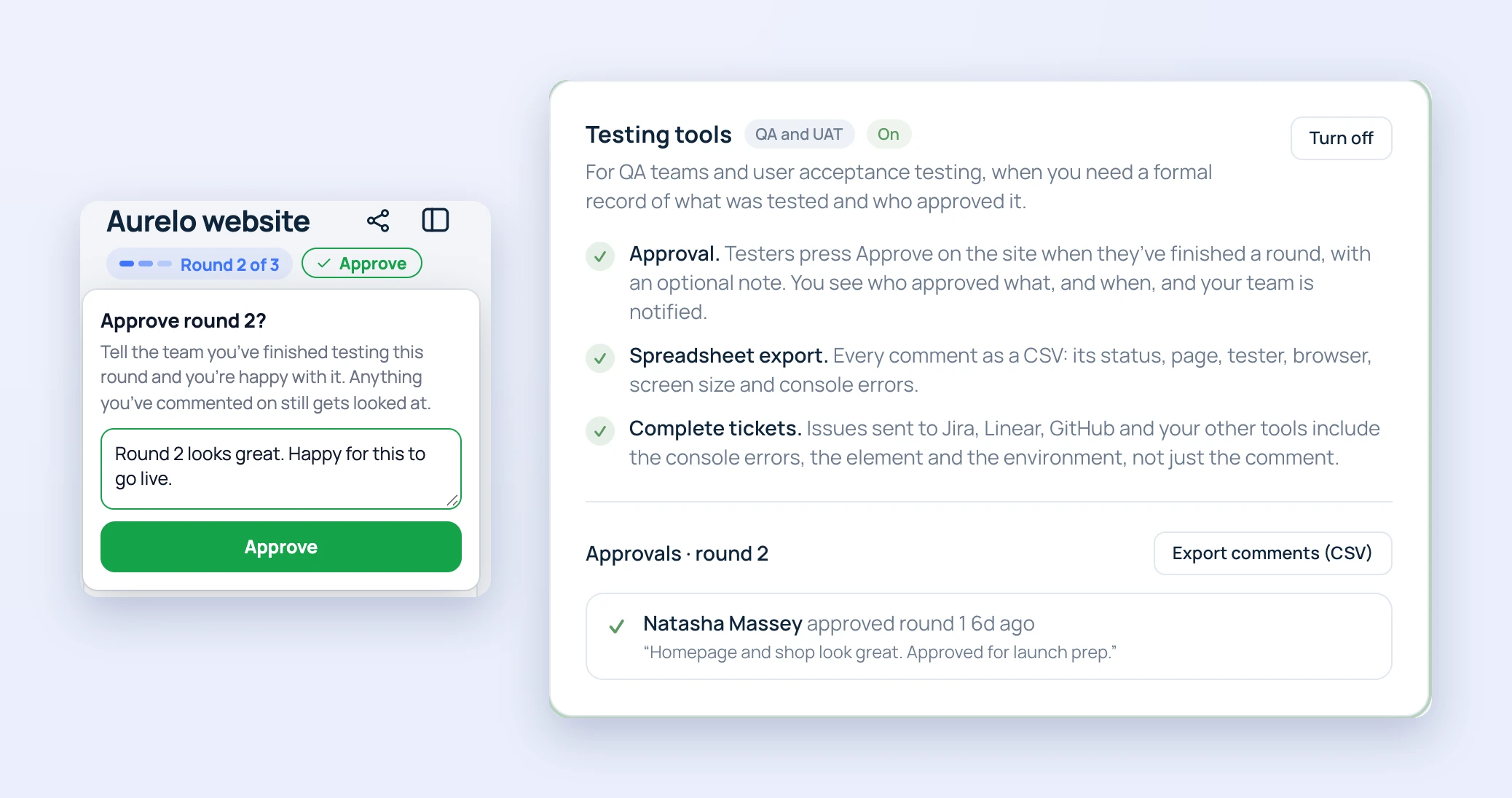
When testers have finished a round, they press Approve on the site, with an optional note. Your team is notified, the project header shows it, and Settings keeps the full list of who approved which round and when.

  • Approve per round, with a note
  • Your team is notified straight away
  • A permanent record in Settings
A tester approving round 2 in Drobber with a note, beside the Testing tools settings showing approval, CSV export and complete tickets, and an approval from round 1

Spreadsheet export

Every comment,
in one CSV.

Export CSV gives you every comment with its status, page, tester, browser, screen size and console errors, ready for a test report or a sign-off pack. The export is safe to open in Excel and Google Sheets.

  • Status, page, tester and browser
  • Screen size and console errors
  • Safe to open in any spreadsheet
A Drobber project board with the Export CSV button, comments in In Progress, Feedback and Resolved, and a filter for visitor feedback

Step by step

How to run UAT in Drobber

Switch testing tools on for the project, then test the way you normally would, on the real site.

  1. 01

    Testing tools on

    Turn on Testing tools in the project’s Settings.

  2. 02

    Invite your testers

    Send the review link to your testers.

  3. 03

    Test on the real site

    Testers pin bugs to the page.

  4. 04

    Approve the round

    Testers press Approve, and your team is notified.

  5. 05

    Export the record

    Export a CSV for your test report.

Approval per round

Testers approve each round, so you know exactly what was signed off.

CSV export

Every comment with status, page, tester, browser, screen size and console errors.

Complete tickets

Issues sent to Jira, Linear, GitHub and your other tools include the developer details.

Revision rounds

Count rounds, and compare the site from one round to the next with before-and-after pictures.

Every screen size

Test desktop, tablet and mobile layouts from the review toolbar.

Exact context

The page, the element, the browser, the operating system and the screen size on every comment.

Make your next sign-off a click.

Start your 14-day free trial and switch on testing tools for your next release.

Start free

30-day money-back guarantee

Secret Link